

Apache Airflow is a popular open-source tool for orchestrating data workflows, including dbt jobs. It can coordinate tasks across different services. For example, a workflow can wait for a file to appear in Cloud Storage and then start a dbt transformation. Within dbt, dependencies between models, seeds, and other resources are defined using functions such as ref(). Selectors (including selectors.yml) let you define which parts of the dbt project to execute. Airflow starts the selected dbt command, and dbt handles the dependencies within that selection.
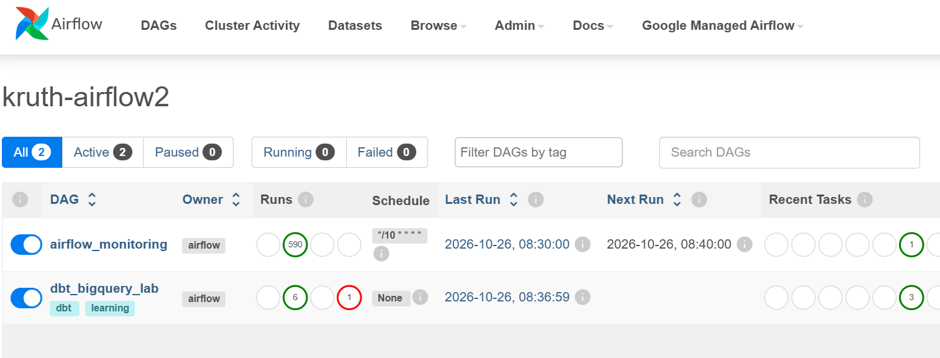
Anyway, I have to say this was not exactly a plug-and-play exercise. Getting Airflow, Cloud Run, permissions, and dbt to work together required quite a lot of configuration.
- Airflow: Defines the workflow, task dependencies, scheduling, retries, and monitoring.
- Cloud Composer (Managed Airflow): Provides a managed Apache Airflow environment on Google Cloud.
- Cloud Run Jobs: Runs my containerized dbt project on demand. dbt itself executes the SQL transformations in BigQuery.
First, I needed to package my dbt project into a container image and then configure Cloud Run to execute that image as a job.
I started by setting my Google Cloud Platform (GCP) variables in PowerShell:
$ProjectId = "kruthproject"
$Region = "europe-north1"
$Repository = "dbt-images"
$JobName = "dbt-traficom"
$RunnerEmail = "dbt-runner@$ProjectId.iam.gserviceaccount.com"
$Image = "$Region-docker.pkg.dev/$ProjectId/$Repository/dbt-traficom:v1"
gcloud auth login
gcloud config set project $ProjectId
gcloud services enable run.googleapis.com artifactregistry.googleapis.com cloudbuild.googleapis.com bigquery.googleapis.com
Next, I created a runtime service account and an output dataset:
gcloud iam service-accounts create dbt-runner --display-name="dbt Cloud Run runner"
gcloud projects add-iam-policy-binding $ProjectId --member="serviceAccount:$RunnerEmail" --role="roles/bigquery.jobUser"
bq --location=europe-north1 mk --dataset "${ProjectId}:dbt_airflow_lab"
The last command caused some trouble. I had installed the Google Cloud SDK in the wrong folder: the default C:\Program Files (x86) location, shared by all users. This led to permission problems. As a workaround, I created the dataset manually. Behind the scenes, I also uninstalled the SDK and reinstalled it under my Windows user profile in AppData\Local.
In BigQuery, I granted the new service account read access to the source dataset and write access to the target dataset. The account also needed permission to create BigQuery jobs.
Next, I created a Cloud Run-specific dbt profile in a new cloudrun folder.
my_bigquery_project:
  target: cloudrun
  outputs:
    cloudrun:
      type: bigquery
      method: oauth
      project: kruthproject
      dataset: dbt_airflow_lab
      location: europe-north1
      threads: 4
Next, I created a Dockerfile in my project root. Docker packages the dbt runtime, its dependencies, and my project files into a reproducible container image. Cloud Run Jobs can then run the same image without requiring a separate dbt installation on the worker.
In practice, this Dockerfile:
• Installs dbt Core and the BigQuery adapter.
• Copies the dbt project into the container.
• Downloads dbt packages when building the image.
• Runs the selected dbt model and its tests when the job starts.
FROM python:3.11-slim

WORKDIR /app

# Starting version range for this exercise.
# Pin an exact tested version once the first build succeeds.
RUN pip install --no-cache-dir "dbt-bigquery>=1.10,<1.11"

COPY dbt_project.yml packages.yml package-lock.yml ./
COPY models/ ./models/
COPY macros/ ./macros/
COPY seeds/ ./seeds/
COPY snapshots/ ./snapshots/
COPY tests/ ./tests/
COPY analysis/ ./analysis/

COPY cloudrun/profiles.yml /app/cloudrun/profiles.yml

ENV DBT_PROFILES_DIR=/app/cloudrun

RUN dbt deps

ENTRYPOINT ["dbt"]
CMD ["build", "--target", "cloudrun", "--select", "stg_imported_vehicles"]
Next, I created a .gcloudignore file to exclude unnecessary files from the Cloud Build upload. For example:
.gcloudignore
.git
.vscode
.agents
.codex
.aws
.venv
venv
__pycache__
target
logs
dbt_packages
I added the same exclusions to a .dockerignore file so those files would not be copied into the Docker build context.
You can check which files gcloud will upload with:
gcloud meta list-files-for-uploadNext, I built and stored the container image using the following commands.
First, I created an Artifact Registry repository:
gcloud artifacts repositories create $Repository --repository-format=docker --location=$RegionThen I built the image:
gcloud builds submit . --region=$Region --tag=$ImageCloud Build uploads the permitted files, executes the Dockerfile, and pushes the resulting image to Artifact Registry.
Next, I created a Cloud Run job:
gcloud run jobs create $JobName `
  --image=$Image `
  --region=$Region `
  --service-account=$RunnerEmail `
  --tasks=1 `
  --parallelism=1 `
  --cpu=1 `
  --memory=1Gi `
  --task-timeout=20m `
  --max-retries=0
Once the job was created, I could execute it. My first attempt failed, but I could inspect the execution status and logs in the Google Cloud Console.
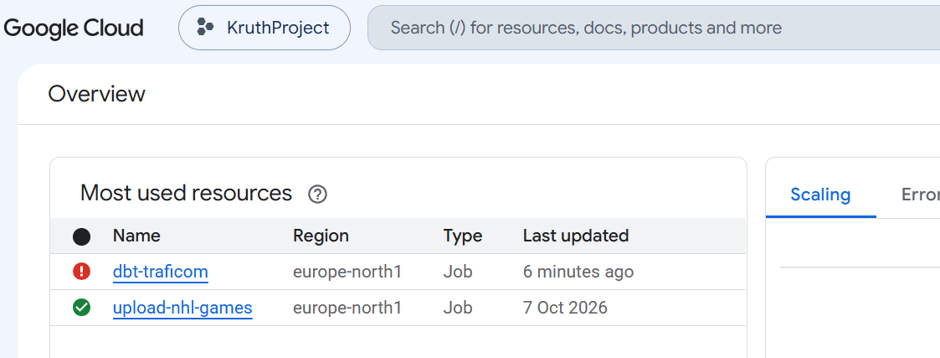
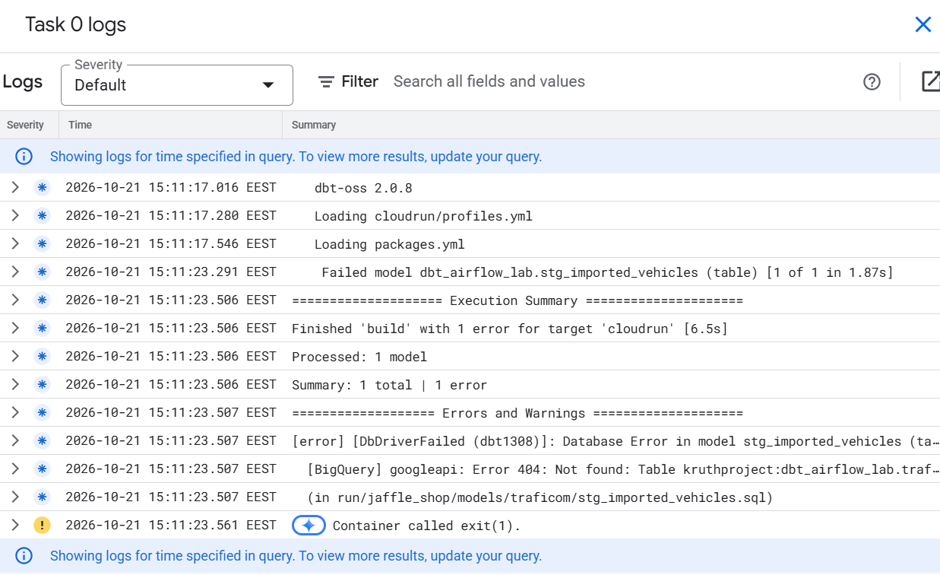
The logs pointed to a missing table. My dbt model depended on a seed, but I had selected only the model for execution. I changed the dbt selection to include its upstream dependencies (for example, +stg_imported_vehicles). Simply copying the seed into the Docker image is not enough: dbt must also build or load it.
I then rebuilt the image and updated the already deployed Cloud Run job. Good exercise!
$Image = "$Region-docker.pkg.dev/$ProjectId/$Repository/dbt-traficom:v2"
gcloud builds submit . --region=$Region --tag=$Image
gcloud run jobs update $JobName --region=$Region --image=$Image
That still was not enough. The next execution failed because of missing permissions. I had to grant the service account the Storage Object Viewer role because the job reads a file from Cloud Storage. Fortunately, no image rebuild was required this time.
So far, I had only created one independent Cloud Run job. Next came the Airflow part: putting it into a workflow.
The Airflow part
I started by creating a separate service account for Composer and granting the permissions needed to run the environment and invoke my Cloud Run job. My first attempt failed because of missing permissions. This was frustrating, especially because creating a Composer environment can take around 25 minutes. One lesson here: grant only the roles required by each identity, and distinguish the Composer environment account from the service agents managed by Google.
Then I created a Managed Airflow Gen 3 environment in the Google Cloud Console and assigned the new service account to it.
One important cost warning: Composer incurs ongoing environment charges even when no DAGs are running! For a learning exercise like this, I recommend deleting the environment when you no longer need it, as I did.
Once Composer was running, it was time to publish a workflow. In Airflow, workflows are called DAGs (Directed Acyclic Graphs). A DAG defines tasks and the dependencies between them, without circular dependencies. DAGs are written in Python, so I used VS Code. I created a folder inside my existing project, although a separate project might make more sense for a larger implementation.
Here is my first DAG:
from datetime import datetime, timedelta, timezone

from airflow import DAG
from airflow.providers.google.cloud.operators.cloud_run import (
    CloudRunExecuteJobOperator,
)

with DAG(
    dag_id="dbt_bigquery_lab",
    start_date=datetime(2026, 1, 1, tzinfo=timezone.utc),
    schedule=None,  # Manual runs first
    catchup=False,
    max_active_runs=1,
    default_args={
        "retries": 0,
        "retry_delay": timedelta(minutes=5),
    },
    tags=["learning", "dbt"],
) as dag:
    build_dbt = CloudRunExecuteJobOperator(
        task_id="build_dbt",
        project_id="kruthproject",
        region="europe-north1",
        job_name="dbt-traficom",
        gcp_conn_id="google_cloud_default",
        deferrable=False,
        do_xcom_push=False,
    )
Then I uploaded the Python file to Composer. In practice, this means placing it in the dags/ folder of the Cloud Storage bucket associated with the Composer environment.
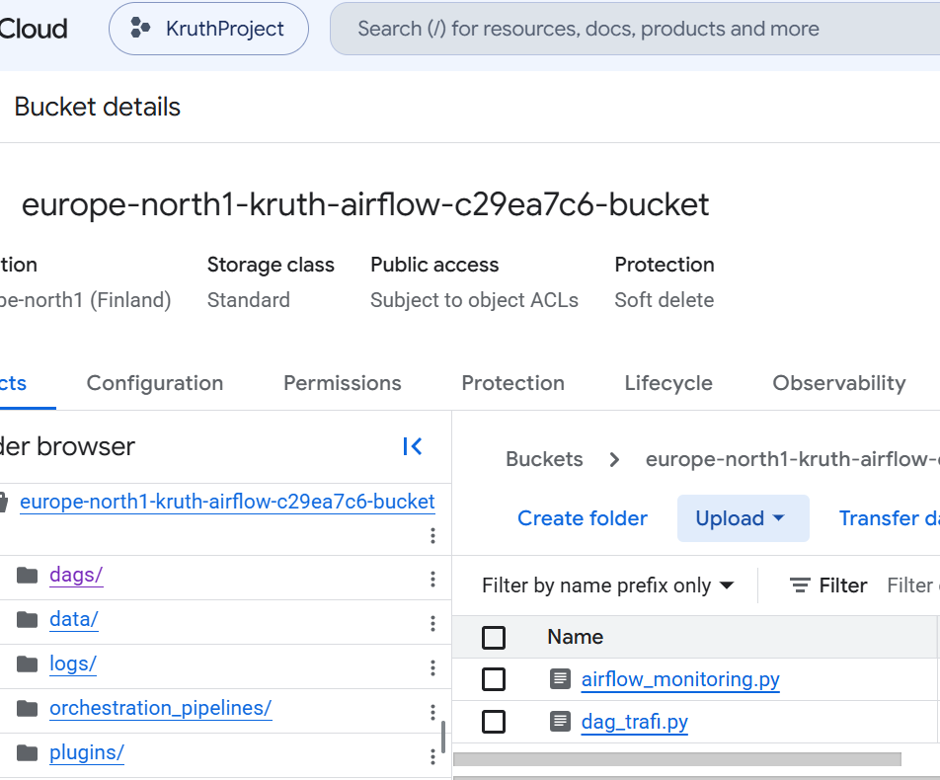
After the upload, Airflow automatically discovered the new DAG.
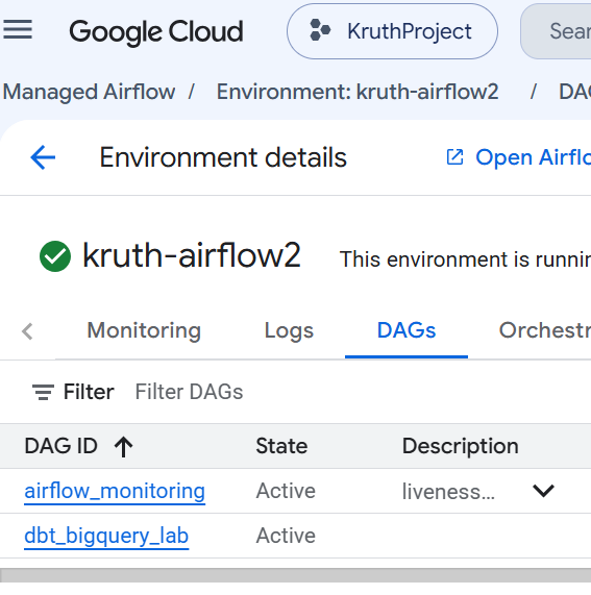
I opened the new DAG and triggered it manually. The execution succeeded! Finally, something worked on the first try. 😊
I also wanted to demonstrate task dependencies. I decided to add a task that waits for a trigger file in Cloud Storage before starting the dbt job. I modified my existing DAG file with the following additions:
# Import the sensor that checks whether the trigger file exists
from airflow.providers.google.cloud.sensors.gcs import (
    GCSObjectExistenceSensor,
)
# Add this task before the dbt build task
wait_for_file = GCSObjectExistenceSensor(
        task_id="wait_for_file",
        bucket="kruth_traficom",
        object="signal/execute.txt",
        google_cloud_conn_id="google_cloud_default",
        poke_interval=30,
        timeout=30 * 60,
        deferrable=True,
    )
# Define the dependency between tasks
wait_for_file >> build_dbt
After uploading the updated Python file, I triggered the DAG manually. The dbt task did not start immediately, as expected, because I had not yet created the trigger file. When I uploaded the file, the sensor succeeded and the dbt task ran. It worked! Note that this sensor checks whether a file exists; it does not, by itself, detect whether an existing file has been updated.
I noticed one more thing: the trigger file remained in Cloud Storage after execution. I added a cleanup task to delete it after the dbt job completed successfully. This requires the appropriate GCS delete permissions for the Airflow task identity.
from airflow.providers.google.cloud.operators.gcs import GCSDeleteObjectsOperator
delete_trigger_file = GCSDeleteObjectsOperator(
    task_id="delete_trigger_file",
    bucket_name="kruth_traficom",
    objects=["signal/execute.txt"],
    gcp_conn_id="google_cloud_default",
)
# The updated workflow:
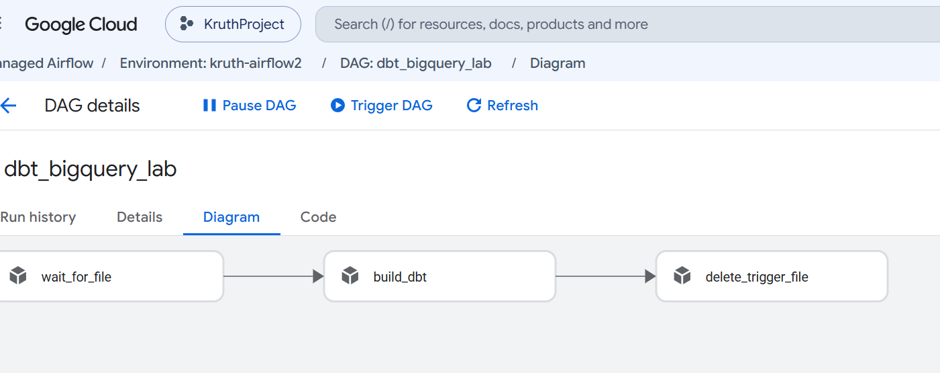
wait_for_file >> build_dbt >> delete_trigger_file
After uploading a changed DAG file, it may take a few minutes for the changes to appear in Composer.
The task dependencies are also visible in the Google Cloud Console:
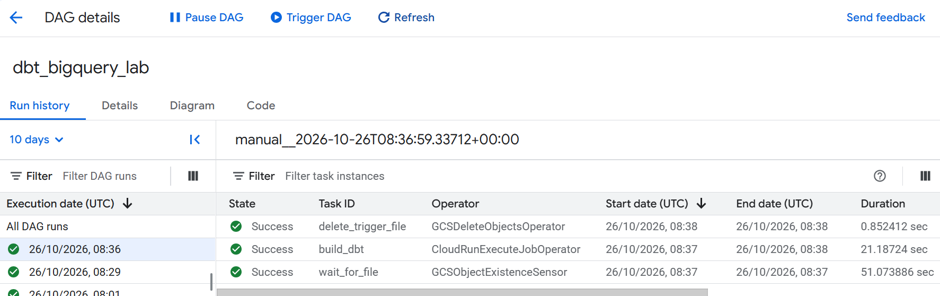
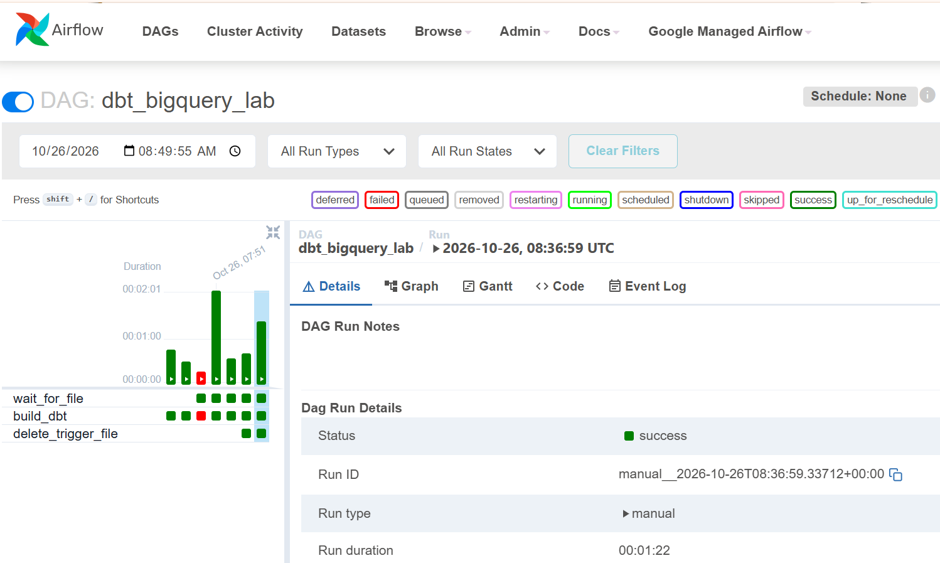
The logs show that the tasks executed successfully and that wait_for_file paused until I uploaded the trigger file.
In this test, I built everything in one DAG, but Airflow also supports coordinating multiple DAGs. Separate DAGs can be useful when workflows need different schedules, owners, or reuse across pipelines. The trade-off is that cross-DAG dependencies add complexity.
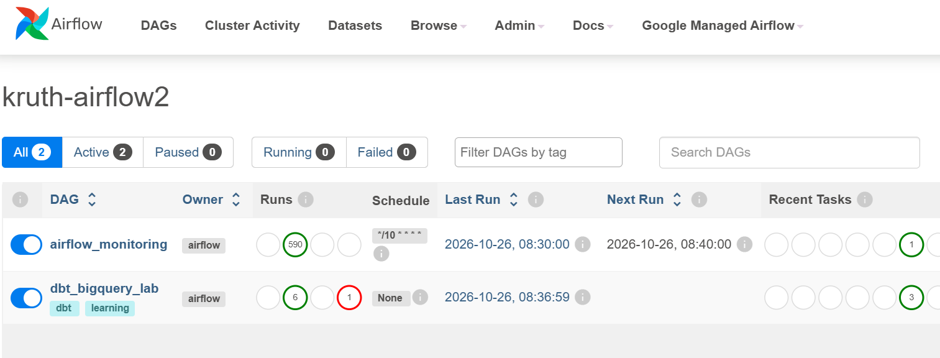
Finally, Airflow has its own user interface for triggering and monitoring workflows. A detailed look at the interface is outside the scope of this post, but it is useful for inspecting DAG runs, task states, and logs. The screenshots below show some of these views.
What I learned
The final workflow was simple: wait for a trigger file, execute a dbt job in Cloud Run, and remove the trigger file after a successful run. Getting there was less simple. Most of the effort went into container packaging, IAM permissions, and connecting the Google Cloud services—not into writing the DAG itself.
For a real production pipeline, I would also think about retries, alerting, idempotency, and what should happen if a job fails after detecting a trigger file. A fixed trigger filename works for this demo, but unique filenames or event-driven triggering would be worth considering when processing many incoming files.
Cloud Composer is powerful when you need to orchestrate several services and more complex dependencies. For a single scheduled dbt job, however, a simpler scheduler calling Cloud Run might be sufficient—and cheaper. Still, this was a useful way to learn how the pieces fit together.